How to Automate Your Freelance Bookkeeping (With Zero Accounting Experience)
Mixing personal and business expenses in a messy spreadsheet is a fast track to a tax audit. Here is the exact tech stack and workflow to put your freelance accounting on autopilot.
TABLE OF CONTENTS (7 SECTIONS)TAP TO EXPAND
The Tax Season Panic
It is April 10th. You are frantically scrolling through twelve months of PDF bank statements, trying to remember if a $45.00 charge from “AMZN MKTPLACE” was a personal purchase or a legitimate business expense for an external hard drive.
If this sounds familiar, your freelance business is suffering from structural accounting failure.
Freelance bookkeeping automation is not about learning double-entry accounting principles; it is about setting up software to do the heavy lifting so you never have to manually type a receipt into a spreadsheet again.
Here is the exact 5-step workflow to put your freelance finances on autopilot in 2026.
Quick Answer: The Freelance Accounting Stack
Before you can automate your workflow, you need the right tool. Choose based on your revenue complexity:
- Wave: Choose this if you want a 100% free baseline. It includes robust invoicing, receipt scanning, and bank connections. It is the best starting point for 80% of solo freelancers.
- Xero: Choose this if you process high volumes, use multiple currencies (e.g., getting paid via Wise Business or Stripe), or plan to scale into an agency.
- QuickBooks Self-Employed: Choose this if your CPA specifically demands it, or if you drive extensively for client work and need its built-in GPS mileage tracker.
Step 1: The Golden Rule (Separate Your Accounts)
Automation is mathematically impossible if your business income is mixed with your personal grocery runs. Accounting software relies on recognizing patterns.
If you do not have a dedicated business checking account, stop reading and open one immediately. It does not matter if you are a sole proprietor or an LLC—you must have a separate bank account and a separate business credit card.
Once your finances are physically separated, you connect this dedicated business account directly to your accounting software via a secure bank feed (Plaid).
Step 2: Configure Bank Feed Rules
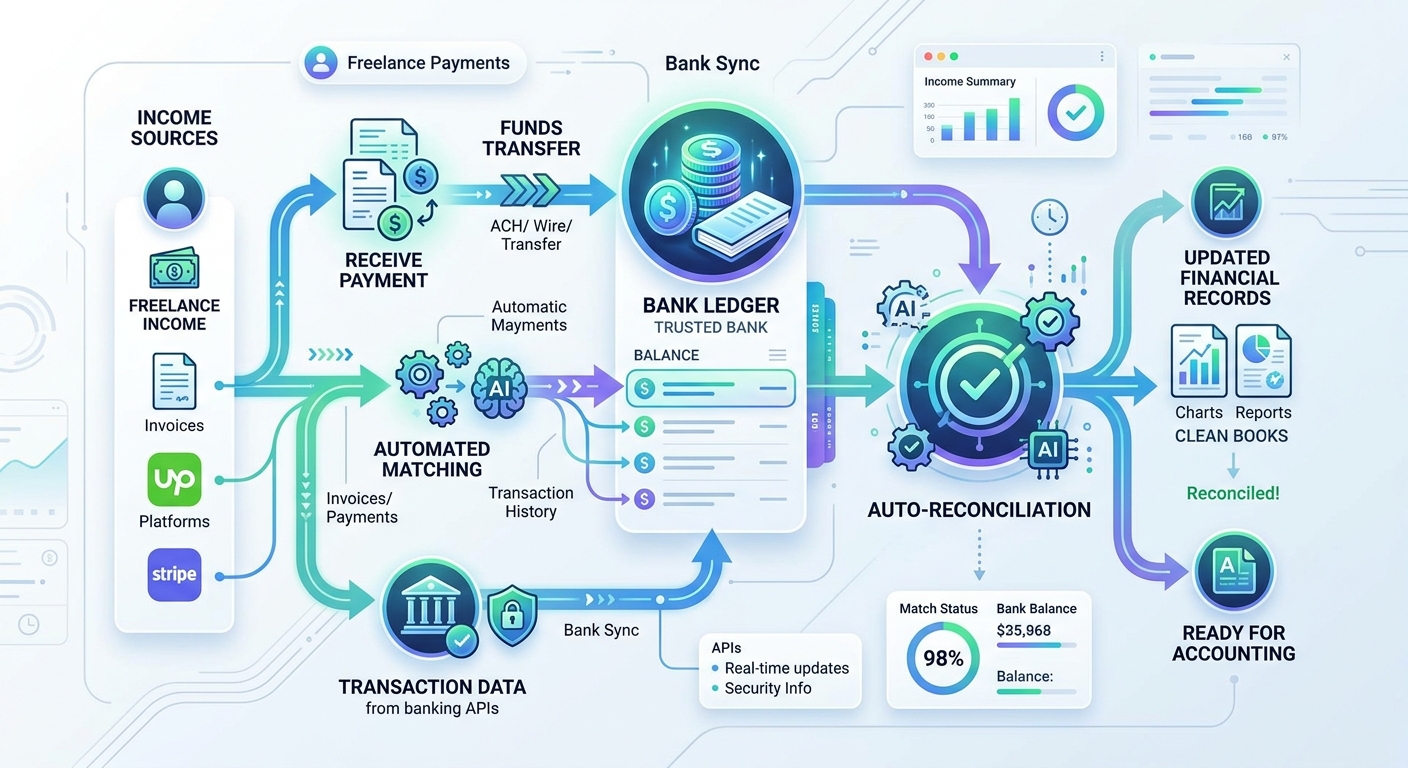 Automated bank rules recognize recurring vendors and instantly categorize them into the correct tax ledgers.
Once your bank feed is live, your software will pull in raw transactions daily. You will teach the software how to handle them using Bank Rules.
Instead of manually categorizing your Adobe subscription every month, you create a rule:
- IF description contains “ADOBE SYSTEMS”
- THEN categorize as “Software Subscriptions”
- AND apply 100% Business Use.
Spend 30 minutes setting up rules for your recurring expenses (hosting, internet, software, coworking space). Next month, the software will automatically reconcile those transactions while you sleep.
Step 3: Automate Receipt Capture
You cannot hand your accountant a shoebox full of faded thermal paper receipts. You need digitized, searchable records.
- Download the mobile app for your chosen software (e.g., the Xero Me app or Wave Receipts).
- Whenever you buy a physical item for the business, snap a photo of the receipt before you leave the store.
- The software uses OCR (Optical Character Recognition) to read the date, amount, and vendor, attaching the digital image directly to the matching bank transaction.
If you buy things online, set up an email forwarding rule. Forward digital receipts to your software’s dedicated intake email address (e.g., receipts@waveapps.com), and it will parse the PDF automatically.
Step 4: Streamline Invoicing & Payment Reconciliation
Manual bookkeeping breaks down when you send an invoice in one system (like a Word document) and receive the cash in another.
To automate this, use your accounting software to issue the invoice, or connect your freelance proposal software directly to your accounting ledger.
When a client pays an invoice via credit card, the accounting software automatically:
- Marks the invoice as “Paid”.
- Matches the incoming deposit in your checking account to the specific invoice.
- Automatically calculates and logs the Stripe/PayPal processing fee as a business expense.
Step 5: The Monthly 15-Minute Review
Automation is not infallible. Software can misinterpret a new vendor or struggle with a split transaction.
Instead of a frantic multi-day panic in April, you will perform a 15-Minute Review on the 1st of every month:
- Open your software dashboard.
- Review the “Uncategorized Transactions” queue (usually just 3 or 4 one-off purchases that didn’t trigger your bank rules).
- Click “Reconcile” to clear the queue.
- Run a quick Profit & Loss (P&L) report to see your net income for the previous month.
By pairing this financial clarity with disciplined time tracking, you will possess a complete, professional overview of your freelance business health—with practically zero manual data entry.
WHAT WE APPRECIATED (PROS)
- ✓Automatically imports and categorizes bank transactions via direct feeds
- ✓Generates instant Profit & Loss (P&L) statements for tax preparation
- ✓Automatically links paid invoices to incoming bank deposits
- ✓Digitizes and stores expense receipts via mobile apps
DRAWBACKS & FRICTION (CONS)
- ✕Requires upfront discipline to open dedicated business banking accounts
- ✕AI auto-categorization can sometimes mislabel unique software subscriptions
- ✕Advanced multi-currency reconciliation requires expensive premium tiers
How to Automate Your Freelance Bookkeeping (With Zero Accounting Experience) Rating Breakdown
Solo contractors and independent creatives who want to minimize tax season anxiety and stop doing manual data entry.
For absolute beginners on a budget, Wave offers a completely free, highly capable accounting baseline. For full-time freelancers processing high transaction volumes or international payments, Xero is the superior automated engine.
EVALUATION METRICS
Speed of setup, friction in daily operations, and intuitive mental model for non-enterprise users.
Utility of capabilities without unnecessary enterprise bloat that slows down solo execution.
Return on investment for a single seat, clear billing tiers, and fair feature gates.
Uptime track record, offline resilience, and friction-free portable data export.
Specific suitability for client collaboration, single-seat economics, and lean overhead.
Frequently Asked Questions
Do I really need dedicated accounting software if I only have a few clients?+
If you process fewer than 10 transactions a month, a spreadsheet might suffice. However, free tools like Wave require exactly the same effort to set up as a spreadsheet, but they automatically generate the P&L reports your accountant will demand at tax time.
Can accounting software automatically track my billable hours?+
Most accounting tools have basic time tracking, but it is rarely as robust as a dedicated tracker. You are better off using a dedicated tool and integrating it, or logging hours separately.
What is bank reconciliation?+
Bank reconciliation is the process of matching a transaction in your accounting software (like a sent invoice) to the actual cash deposit that appeared in your checking account. Modern software automates this by pulling a live feed from your bank.

Freelance Tool Guide Team
The editorial team behind Freelance Tool Guide, independently researching and testing software for freelancers and small teams.
More Independent Software Analyses
Wise Business vs Stripe: The Hidden Costs of Cross-Border Freelance Invoicing
How international transaction fees and currency markups quietly siphon thousands from remote freelancers. A detailed fee audit and workflow guide.
Best Proposal Software for Freelancers: Free & Paid Options
Win bigger client contracts with less friction. We test the best proposal software and e-signature tools for freelancers, comparing speed, analytics, and templates.
Best Free Time Tracking Apps for Freelancers in 2026
Never leak unbilled hours again. We analyze the best free time tracking apps for independent contractors, evaluating reporting, idle detection, and export capabilities.